- Install X Article to PDF and open the X Article on x.com.
- Click the red PDF icon in the Article’s action bar, next to Bookmark and Share.
- A PDF with searchable text, headings and full-size images is saved to your Downloads folder.
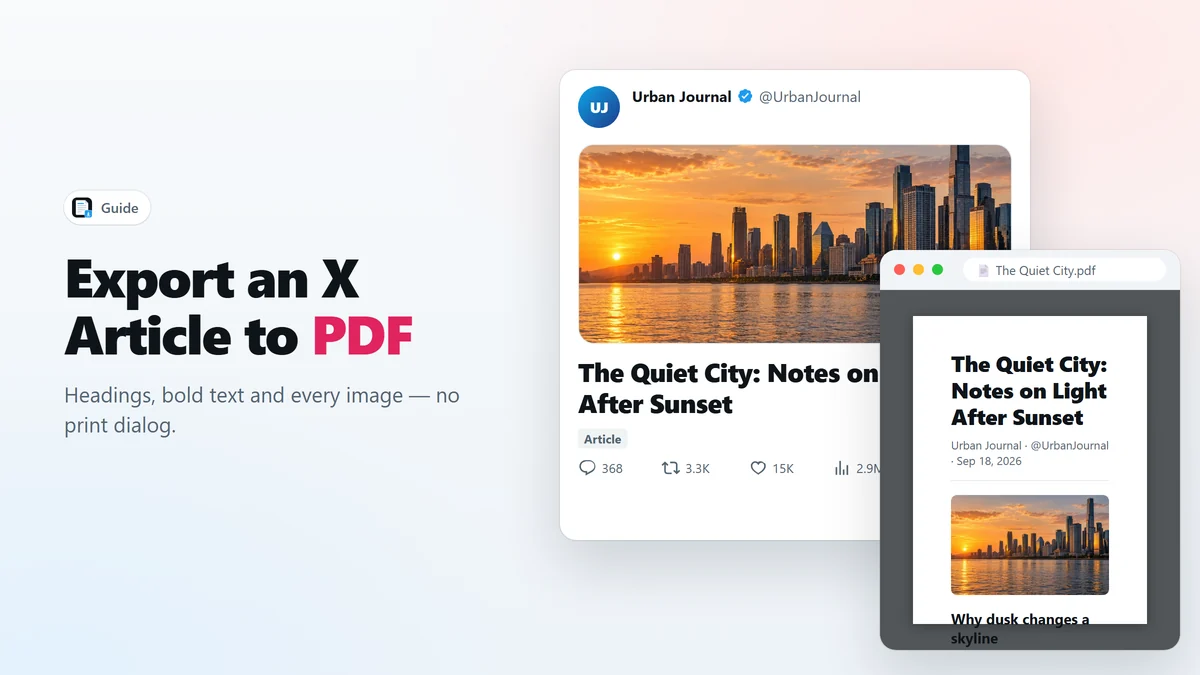
X Articles are the long-form side of X: real headings, bold text, quotes, lists and images, written like a blog post. They are also easy to lose track of. This guide shows how to export an X Article to PDF with one click, and what you get compared with printing the page yourself.
What an X Article is
An Article is a long post written in X’s own editor. It opens on its own page, often with a cover image, and it can be much longer than a regular post. On a timeline it shows up as a card with a title; clicking it opens the full text.
How to export an X Article to PDF
- Install X Article to PDF from the Chrome Web Store. It works in Chrome and Edge.
- Open the Article on x.com, on its own page.
- Click the red PDF icon in the action bar, next to Bookmark and Share.
- Wait a moment. The extension loads the whole Article, including images further down, then creates the PDF in a background tab.
- Open it from your Downloads folder. The file is named after the Article’s title.

Keep the tab in front while the export runs: Chrome does not load images in background tabs, so the extension waits for you to come back rather than saving a PDF with blank pictures.
What an X Article to PDF export keeps
- Headings, quotes and lists — the Article’s structure is rebuilt as a clean document, not a screenshot of the timeline.
- Bold and italic text — formatting is read from the page and kept.
- Every image at its original resolution, including the cover, in the order the author placed them.
- Real, selectable text — search the PDF, copy a quote, or highlight passages in your PDF reader.
- Only the Article — the sidebar, the reply box and other people’s replies are left out.
Why not just use the browser’s Print to PDF?
You can press Ctrl+P on an Article, but the result is rarely usable. X only keeps part of a long Article in the page at a time, so sections outside the screen can be missing. The navigation, the sidebar and the replies get printed too, images that have not loaded yet come out blank, and on a long Article the print preview can freeze the tab.
X Article to PDF avoids all of that by building a separate, clean copy of the Article first and printing that copy in its own background tab. Your x.com tab is never touched.
Other formats: Markdown and self-contained HTML
Right-click the PDF icon to choose another format. Markdown gives you plain text with headings and links for a notes app. HTML (self-contained) saves one file with every image inside it, which opens offline even if the Article is deleted — see how to archive X Articles offline.
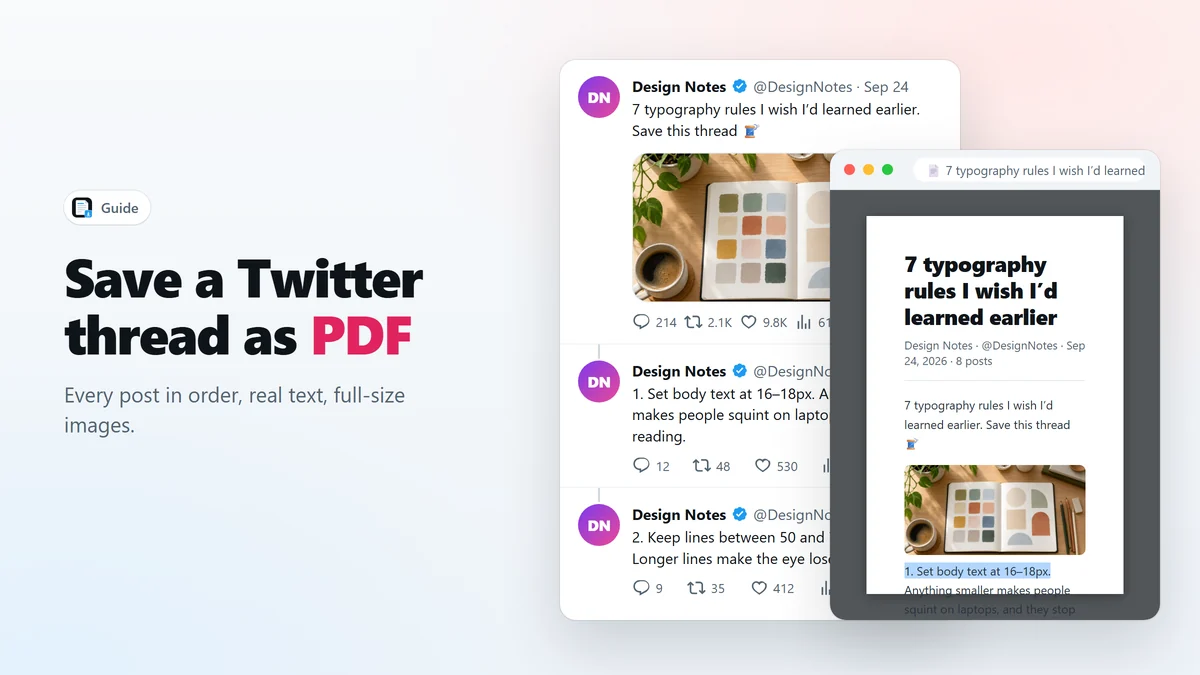
Saving a thread rather than an Article works the same way; see how to save a Twitter thread as PDF.
Frequently asked questions
Do I need X Premium to export an X Article?
No. Writing Articles requires a subscription on X, but reading and exporting them does not. If you can open the Article on x.com, you can save it as PDF.
Why is there no print dialog?
The extension renders the PDF in a background tab using Chrome’s debugger API, the same engine Chrome uses for printing. That is why you briefly see the notice that the extension “started debugging this browser”.
Are the images in the PDF full resolution?
Yes. Images are loaded at their original size before the PDF is created, not captured from the screen.
What if the PDF cannot be created?
If Chrome does not allow the debugger to attach — for example because DevTools is open on that tab — the extension downloads a self-contained HTML file instead and tells you why.
Can I export an X Article to Word?
Not directly. Export it as Markdown or HTML and open that in your editor, or convert the Markdown with a tool such as Pandoc.
Save X Articles and threads as PDF in one click
Free Chrome extension. No account, no servers, no tracking.