How to Save a Twitter (X) Thread as PDF in 2026
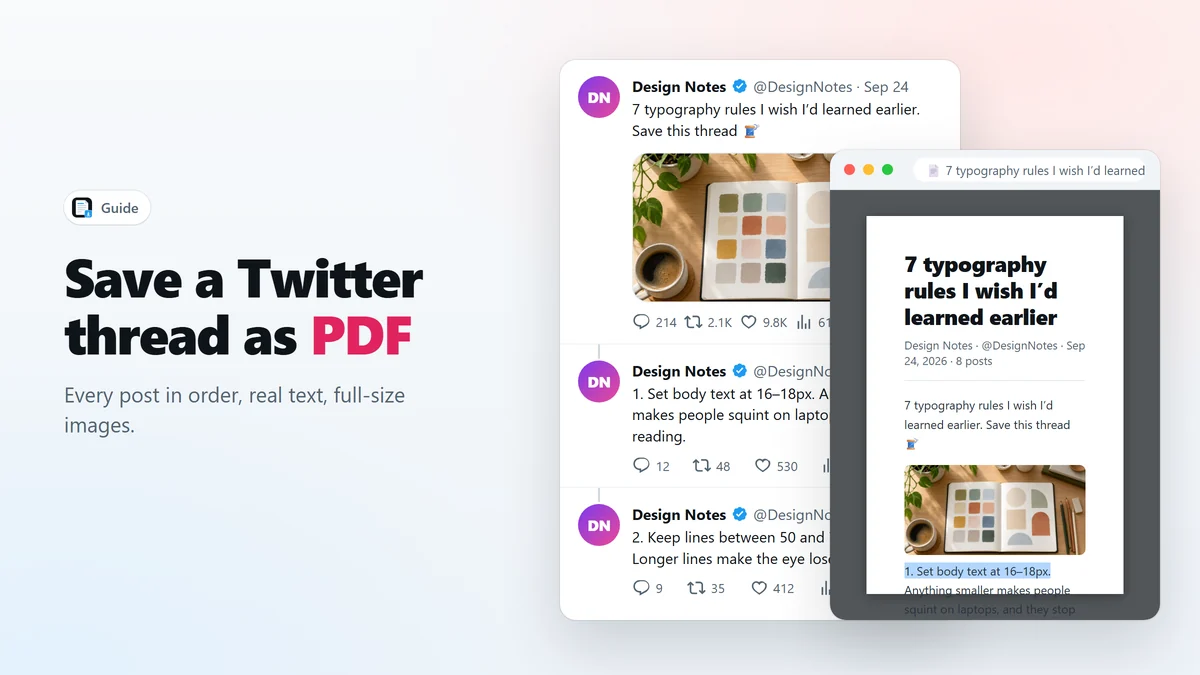
Save a whole Twitter thread as one PDF with searchable text and full-size images: open the thread, reload once, click the PDF icon. Plus why print-to-PDF and screenshots fall short.
6 min readFree Twitter to PDF extension for Chrome
Save X Articles and Twitter threads as real PDFs in one click.
X Article to PDF adds a red PDF icon to posts on X. Click it to save an X Article or a whole Twitter thread as a PDF with searchable text and full-resolution images — or export Markdown and self-contained HTML instead.
Features
The simplest way to save a Twitter thread as PDF: no screenshots, no copy-pasting, no print dialog.
Real PDF
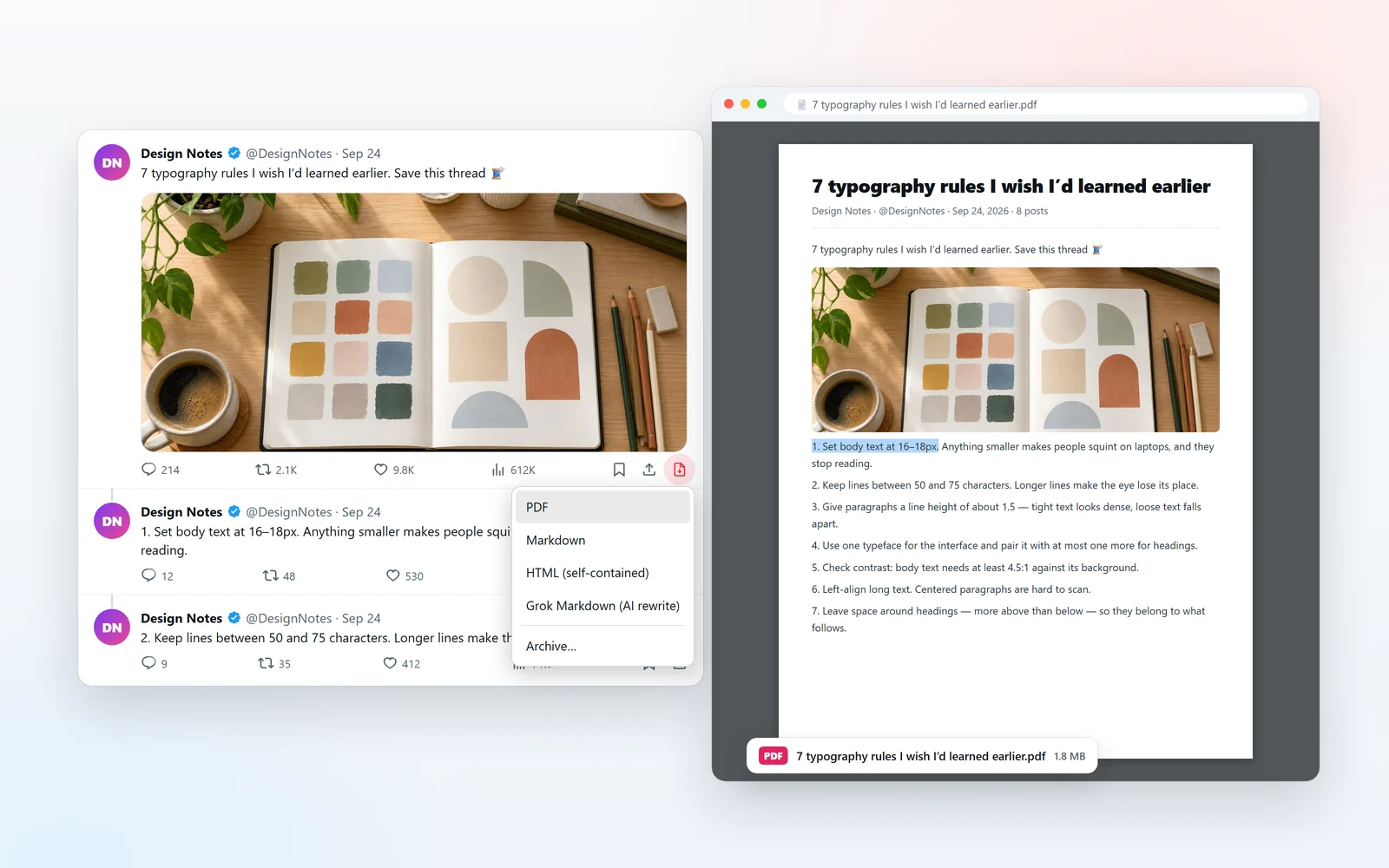
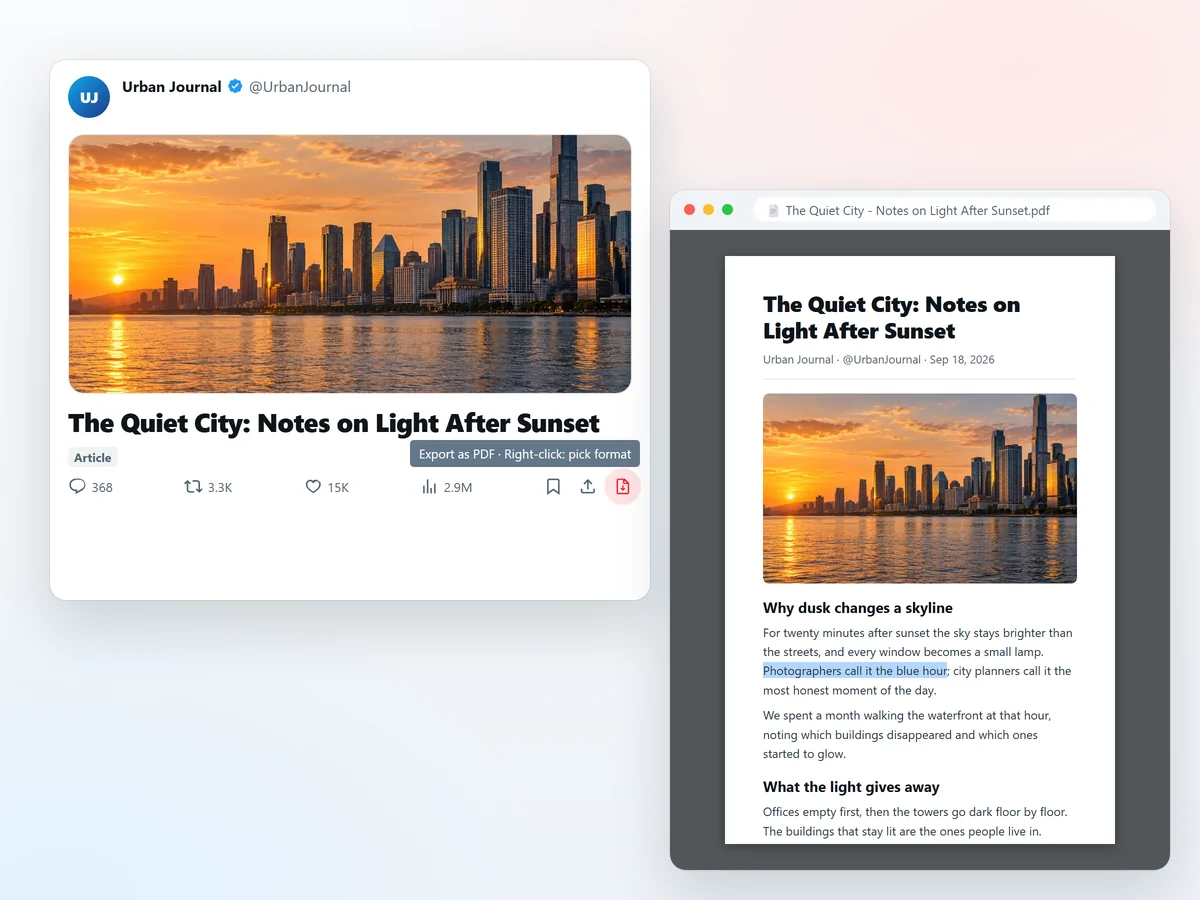
X Article to PDF puts its icon in the post’s action bar, next to Bookmark and Share. One click turns an X Article or a Twitter thread into a PDF with selectable, searchable text and images at their original resolution — generated in the background and saved straight to your Downloads folder.
Markdown
Right-click the icon for more formats. Export a thread as plain Markdown, or pick Grok Markdown: X’s own Grok, in your own account, rewrites a long self-thread into one clean article with a title, a summary and a heading per point — ready for Obsidian or Notion.
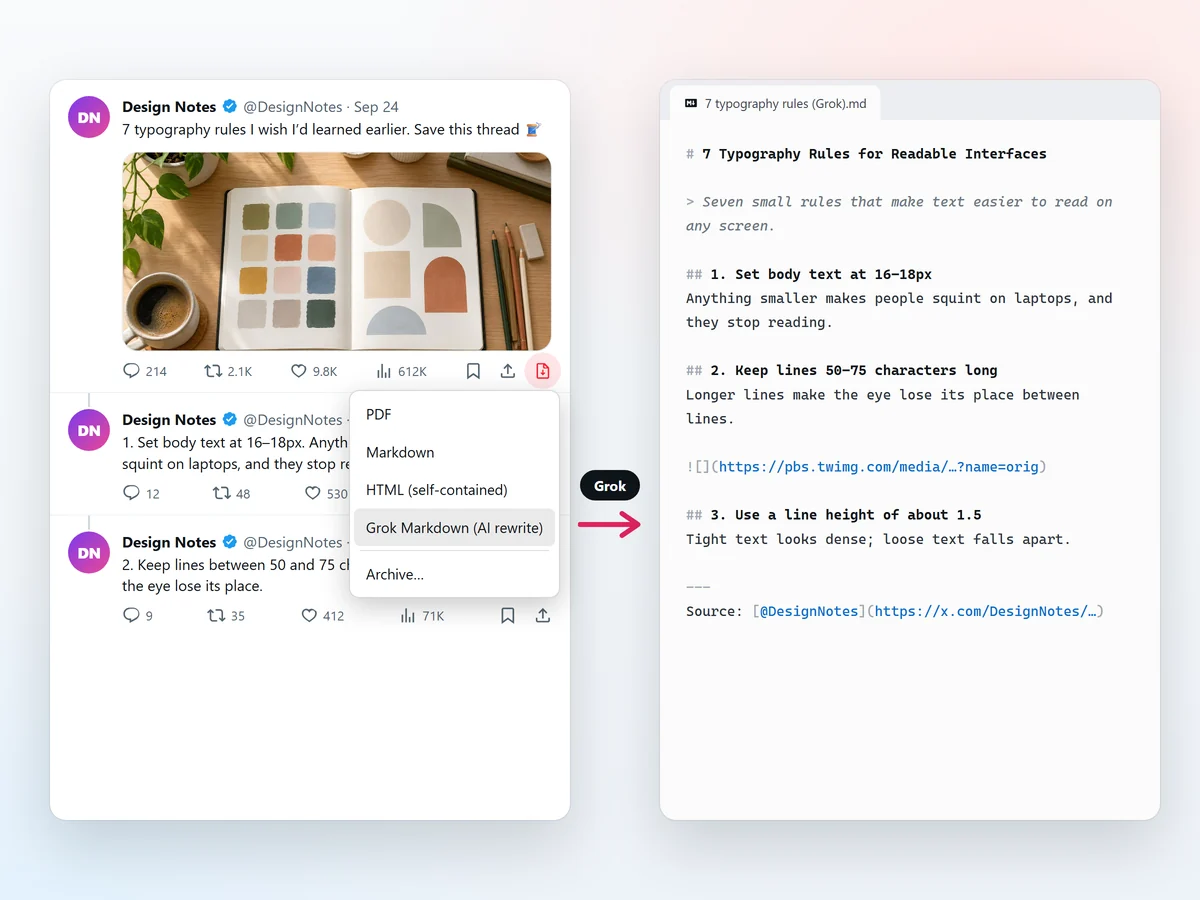
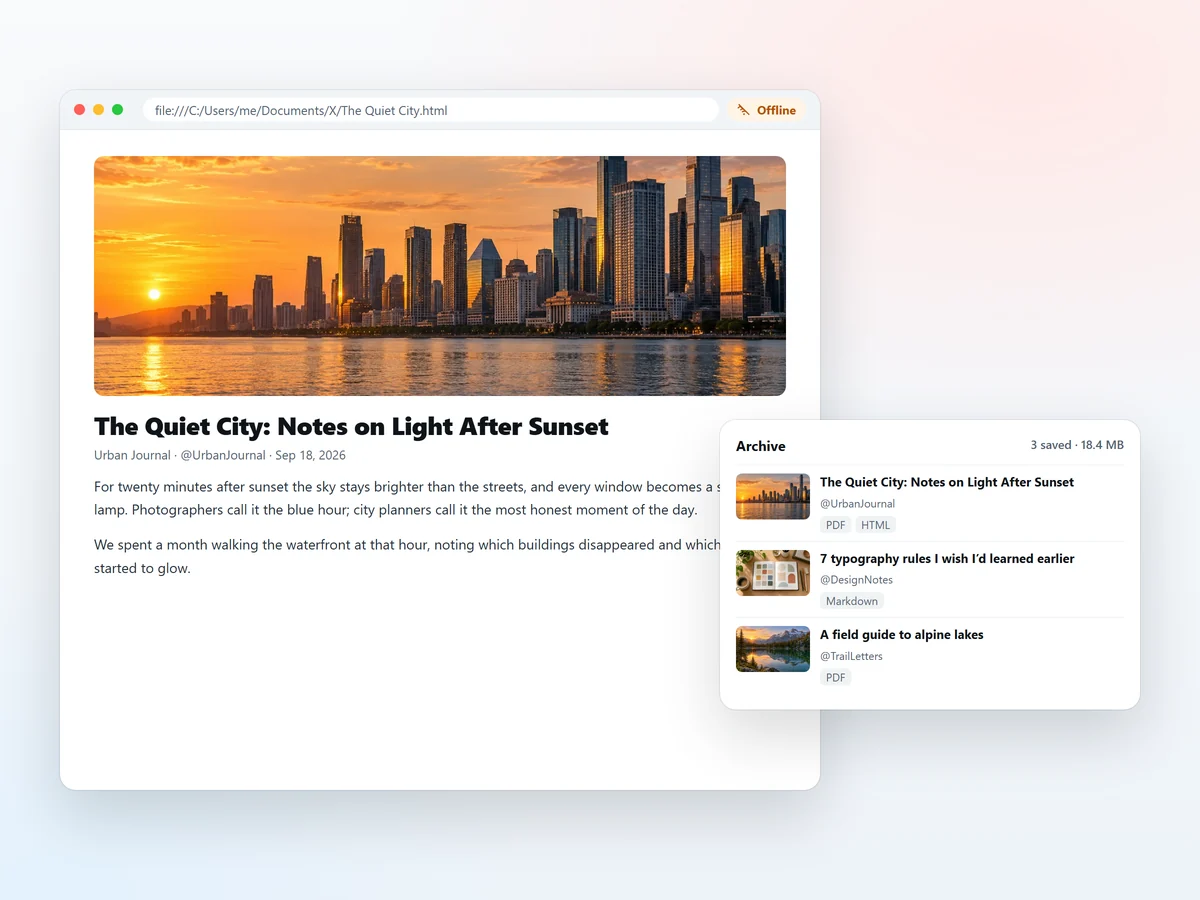
Offline archive
Export a self-contained HTML file with every image inlined, so a saved X Article still opens after the original post is deleted. Every export also leaves a self-contained copy in a local archive on your own device, where you can search it and reopen it later.
About
X Article to PDF is a free browser extension for Chrome and Edge that saves long posts from X, formerly Twitter, as files you can keep. X Articles and threads are easy to lose: bookmarks break when a post is deleted, screenshots cannot be searched, and the browser's print dialog cuts long posts into a mess of timeline fragments. X Article to PDF adds a red PDF icon to the post itself, and one click saves a clean PDF with searchable text and full-resolution images straight to your Downloads folder.
It works as a Twitter to PDF converter for threads too. Instead of scrolling and capturing what is on screen, it rebuilds the whole thread from X's own data, so every post the author wrote is included in order. If you would rather keep notes than documents, it exports a Twitter thread to Markdown, or asks X's own Grok to rewrite a long thread into one structured article for Obsidian or Notion. A self-contained HTML export keeps every image inside a single file that opens offline.
Everything happens locally in your browser: no account, no servers and no tracking. Read our guide on how to save a Twitter thread as PDF or how to convert a Twitter thread to Markdown.
Privacy
No account, no servers, no analytics, no tracking. Every PDF, Markdown and HTML export is created locally in your browser.
Exports and the optional archive stay on your device. Nothing is uploaded to us.
There is no account to create and no personal data to hand over.
Released under the MIT license, so you can see exactly what it does.
How it works
Add it to Chrome or Edge from the Chrome Web Store. It’s free.
Open an X Article, or a post the author continued as a thread. A red PDF icon appears in its action bar.
Left-click for a PDF, or right-click for Markdown, HTML or Grok Markdown. The file lands in your Downloads folder.
FAQ
X Article to PDF is a free Chrome extension that saves X (Twitter) Articles and threads as PDF files with searchable text and full-resolution images. It can also export Markdown and self-contained HTML, and rewrite a long thread into a Markdown article with Grok.
Yes. It is completely free and open source, with no account, no export limits and no watermark.
Open the first post of the thread on its own page, reload the page once after installing the extension, and click the red PDF icon. The whole thread is rebuilt from X’s own data and saved as one PDF.
Yes. X Article to PDF creates a real PDF with vector text, not a screenshot, so you can search, select and copy it. Images keep their original resolution.
Yes. Right-click the PDF icon and choose Markdown for a direct export, or Grok Markdown to have X’s Grok rewrite the thread into a structured article. Both save a .md file for Obsidian, Notion or any Markdown editor.
That is how the extension renders a real PDF without a print dialog: it uses Chrome’s debugger API to print the page to PDF in a background tab. Chrome always shows this notice while it runs, and it disappears when the export is done.
Yes. It runs entirely in your browser: no servers, no analytics and no tracking. The only feature that sends content anywhere is Grok Markdown, which sends the thread’s text to X’s own Grok in your own account.
Google Chrome and Microsoft Edge, and other Chromium-based browsers such as Brave and Opera. Mobile browsers do not support extensions.
Guides
Save a whole Twitter thread as one PDF with searchable text and full-size images: open the thread, reload once, click the PDF icon. Plus why print-to-PDF and screenshots fall short.
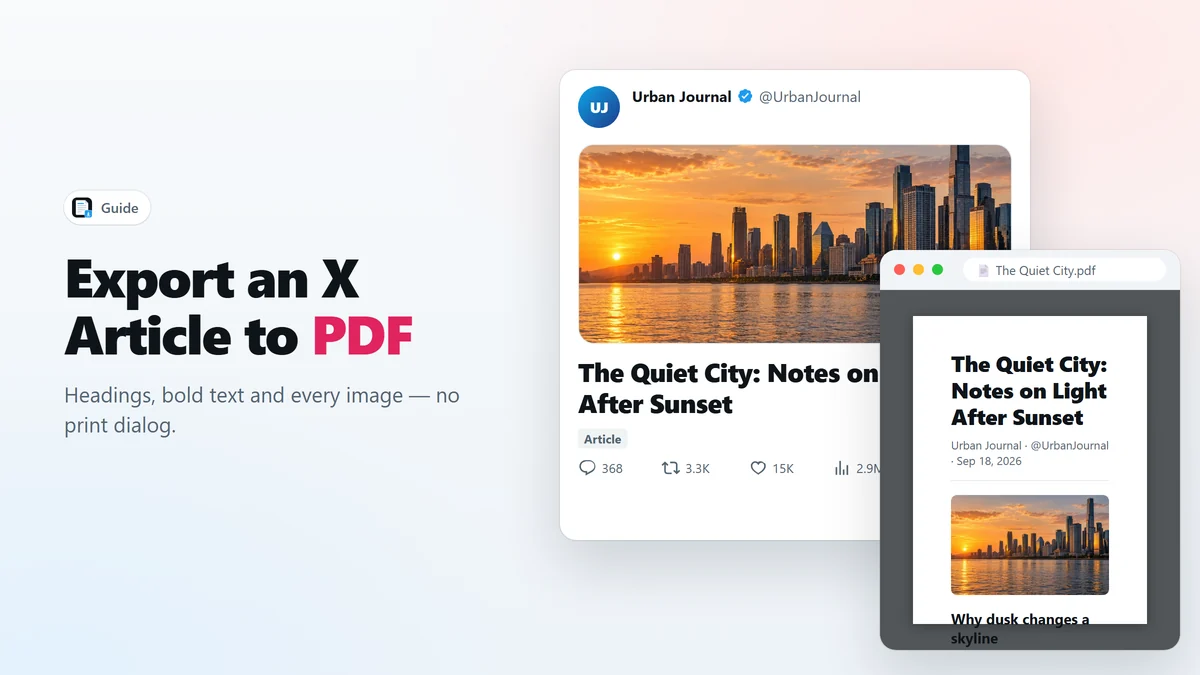
6 min readX Articles are long-form posts that the browser’s print dialog mangles. Here is how to export an X Article to a real PDF that keeps headings, bold text, quotes and every image.
6 min read